KernelCI runner (pull-lab)
LMS allows to configure an LAA to act as a KernelCI runner. Once configured, the LAA becomes a KernelCI pull-lab: it polls the KernelCI Maestro API for jobs targeting the attached DUT, runs them locally, and reports the results back to the KernelCI API.
Because the LAA pulls the jobs (rather than KernelCI pushing them), the DUT can stay inside a closed network with no inbound access. See the Hardware in the CI loop use case for the high level picture.

Overview
Connecting a DUT as a KernelCI runner is a three step process:
Set the KernelCI runner: switch the LAA to the KernelCI runner kind in LMS (lavacloud.io).
Select the device: choose the device-type attached to the LAA.
Create the KernelCI events: request the runtime and scheduler events for the device on the KernelCI side so that jobs are offered to your pull-lab.
The first two steps are done by you in LMS. The third step is done on the KernelCI Maestro configuration and currently needs to be requested (see Create the KernelCI events).
Register the LAA first
The LAA must already be registered to LMS. If it’s not, follow the registration guide first.
Set the KernelCI runner
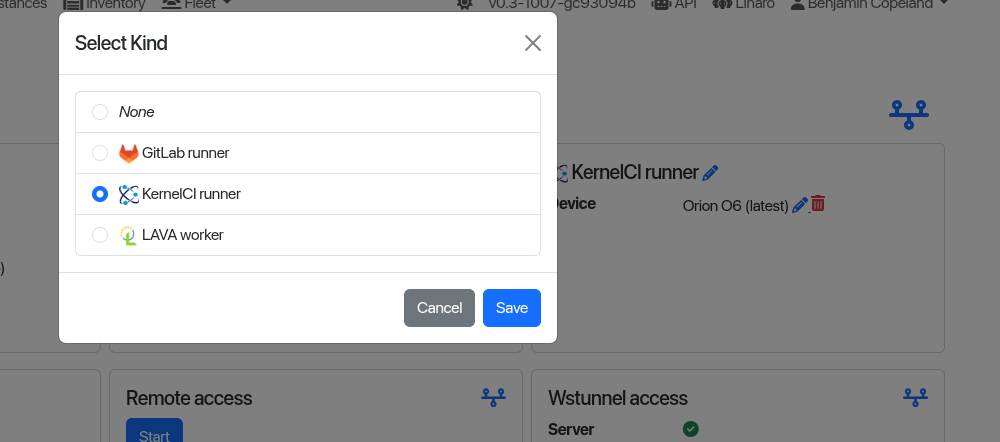
On the LAA page in LMS, click the pencil next to the runner card. In the
Select Kind dialog, choose KernelCI runner and click Save.
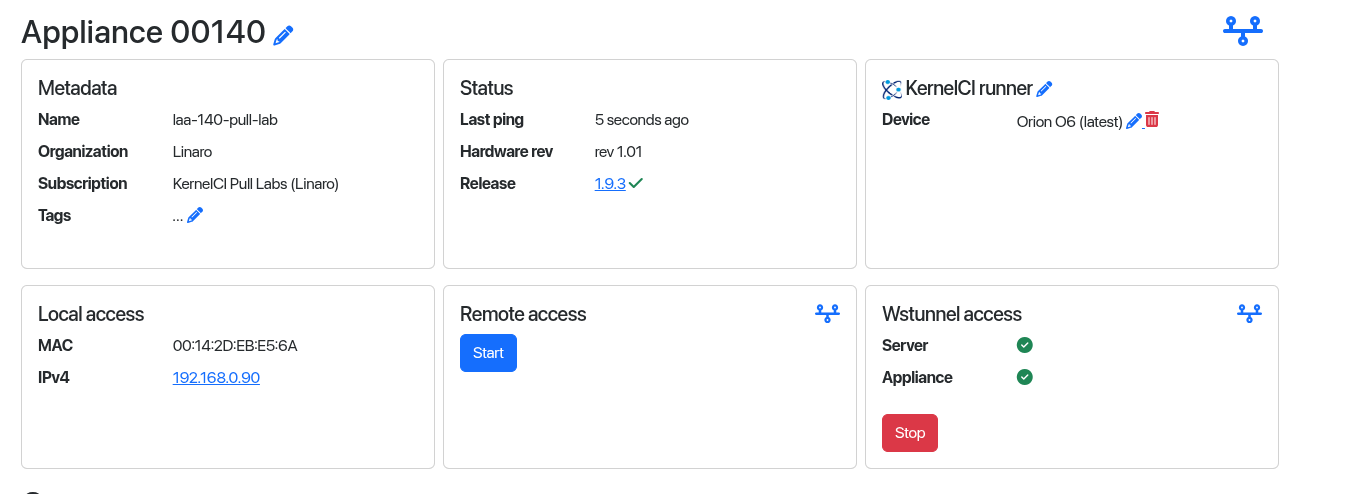
The appliance now runs as a KernelCI pull-lab and the KernelCI runner card is
shown on the LAA page.
One runtime per appliance
The Select Kind options (GitLab runner, KernelCI runner, LAVA worker)
are mutually exclusive: an appliance runs a single runtime at a time. Select
None to disable the runner.
Select the device
In the KernelCI runner card, click the pencil in front of Device and choose
the device-type attached to the LAA (for example Orion O6). Selecting the
device works the same way as for a LAVA worker, see
DUT configuration for the details.
Device-type name
Take note of the exact device-type selected here. The same device-type (KernelCI platform) name is needed when creating the KernelCI events so that jobs are routed to the right lab.
Create the KernelCI events
Configuring the LAA as a pull-lab isn’t enough on its own: the KernelCI Maestro pipeline must be told to offer jobs to your lab for your device. This is done by adding a runtime and one or more scheduler events on the KernelCI side.
What needs to be created
For each device, the following is added to the KernelCI Maestro configuration (see the upstream connecting a pull-lab guide for the full reference):
A runtime entry declaring your pull-lab (poll interval, timeout, storage and the callback token used to report results).
One or more scheduler events: each event subscribes to a kind of node event (for example a completed kernel build,
state: available) and maps it to your runtime and to the platform (device-type) attached to your LAA. When a matching event occurs, a job is generated and made available for your pull-lab to pull.A job definition and callback token matching the runtime name.
Only jobs whose platform matches the device-type you configured are offered to your lab, so the device-type name must match the one selected when selecting the device.
Requesting the events
The KernelCI Maestro configuration is maintained by the KernelCI team. To have the runtime and scheduler events created for your device, raise a ticket on the Linaro support portal.
Include the following information:
the LAA serial and organisation,
the device-type (KernelCI platform) name attached to the LAA,
the kind of jobs you want the device to run (for example baseline boot tests).
Once the events are in place, matching jobs will start to be pulled and executed by the LAA automatically, and results will appear on the KernelCI dashboard.
How it works
The LAA polls the KernelCI Maestro API at a fixed interval for jobs assigned to its runtime and platform. For each job it retrieves the kernel artefacts and test definition, runs the job on the attached DUT, and reports the result back to the KernelCI API using the callback token. No inbound connection to the LAA or the DUT is required, which is what allows the DUT to remain on a closed network.