SSH keys
The LAA runs an SSH server on its public network interface. Adding an SSH
public key in the LAA web interface authorises that key to open an SSH session
on the LAA as the torizon account.
Public network interface only
The SSH server only listens on the LAA Main Eth (public) interface. It is
not reachable from the private DUT Eth interface.
Manage SSH keys
Browse to the LAA embedded web interface using the IP
address shown on the OLED display (for example http://192.168.0.145/) and open
Appliance > SSH Keys, or go directly to:
http://<laa-ip>/appliance/ssh/
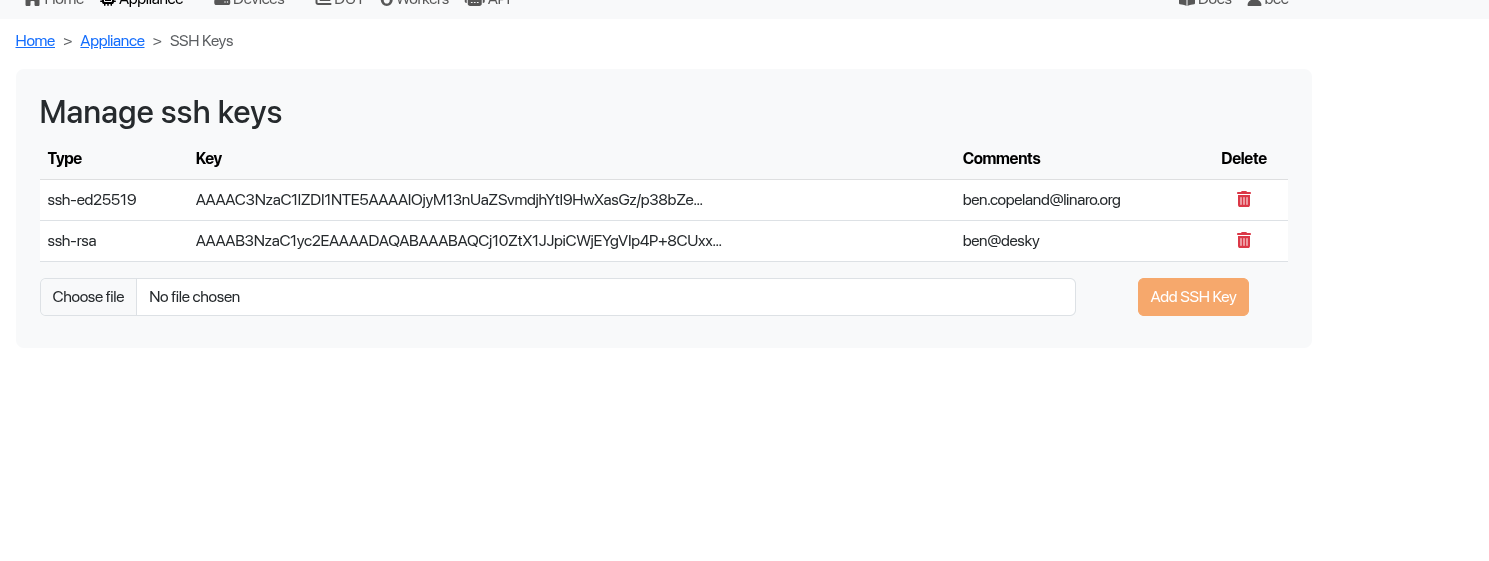
The page lists every authorised key with:
Type—the key algorithm (for example
ssh-ed25519,ssh-rsa)Key—a truncated view of the public key material
Comments—the trailing comment field of the key (typically the
user@hostit was generated on)Delete—remove the key from the LAA
Add a key
Generate an SSH key pair on your workstation if you don’t already have one. Ed25519 is recommended:
ssh-keygen -t ed25519 -C "your.name@example.com"
This produces
~/.ssh/id_ed25519(private, keep secret) and~/.ssh/id_ed25519.pub(public, safe to upload).On the
Manage ssh keyspage, clickChoose fileand select your public key file (the one ending in.pub).Click
Add SSH Key. The new key is appended to the list and takes effect immediately.
Only upload the public key
Never upload your private key (the file without the .pub extension).
Only the .pub file should be added here.
Remove a key
Click the red bin icon on the row of the key you want to revoke. The key is
removed from the LAA’s authorized_keys file immediately and any future SSH
attempt with that key will be refused. Existing SSH sessions aren’t
terminated.
Connect over SSH
Once your key has been added, you can SSH to the LAA as the torizon account on
its public IP address:
ssh torizon@<laa-public-ip>
The public IP address is the one printed on the LAA OLED display and shown on the LAA page in lavacloud.io.
From this SSH session the LAA can act as a jump host onto the private
198.18.0.0/24 network—useful for reaching the DUT or a BMC/IPMI
controller from outside the lab. See the device guide for your platform for
platform-specific tunnel examples (for example
Ampere Server Platforms).
Troubleshooting
Permission denied (publickey)
Confirm that the public key was uploaded (the
.pubfile), not the private one.Check that your SSH client is offering the matching private key:
ssh -v -i ~/.ssh/id_ed25519 torizon@<laa-public-ip>
Verify the key still appears in
Appliance > SSH Keys.